Using Incident PTT Channels for Dispatchers
The incident PTT channels enable dispatchers, supervisors and active responders to chat in a designated incident PTT Channel. The incident PTT channels are provisioned automatically when any one of the incident participants (dispatcher, supervisor or responder) clicks on the PTT button. Users joining the incident are automatically added to the channel. The designated channel remains available as long as the incident remains open and there are active responders in the incident.
Dispatchers can only view channels for Incidents that fall within the jurisdiction of their control center to which they are assigned. Read more about control centers here.
Only Dispatchers that have actively engaged in an incident (i.e. the dispatch operator who created, modified, or opened the incident) will hear live messages of the incident in their audio speakers.
Using Incident PTT Channels
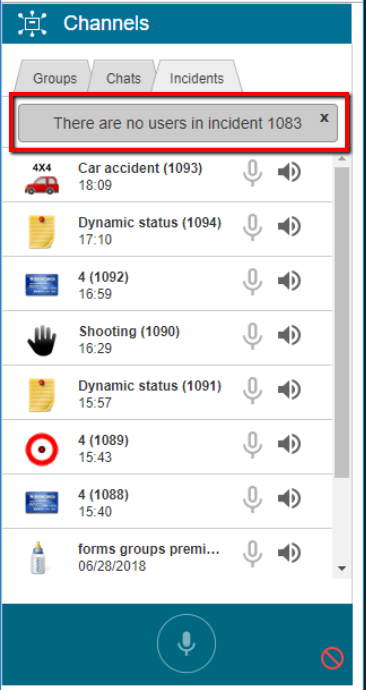
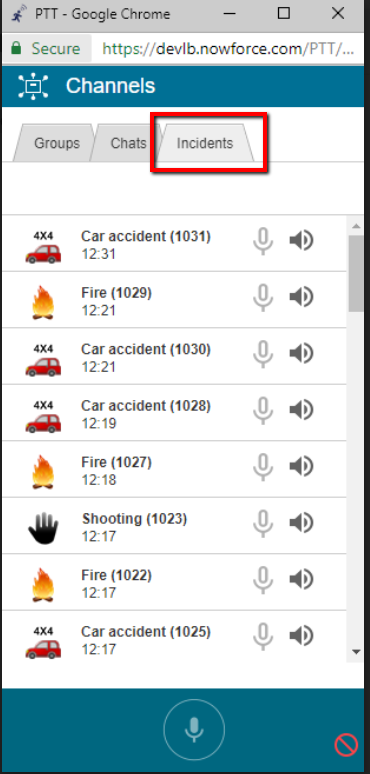
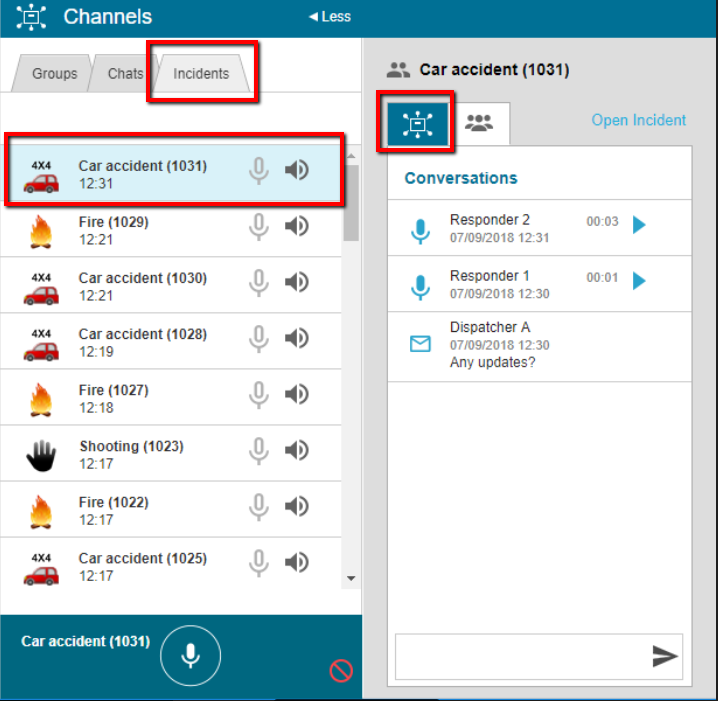
The incident PTT channels are located on the Incidents tab in the Channels (PTT) panel.
To access an incident channel from the Channels panel
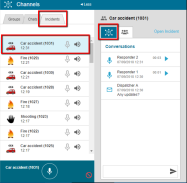
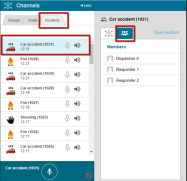
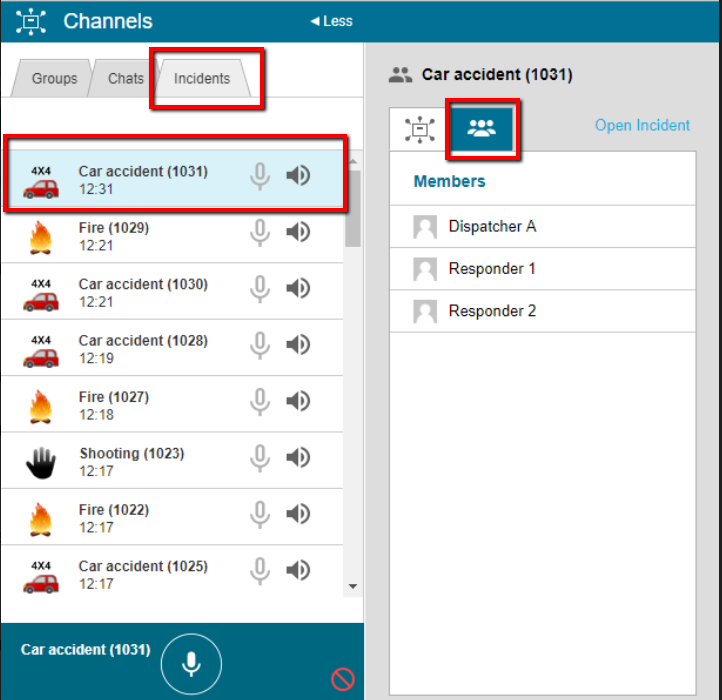
- Click an incident channel to extend the window and display details of the channel in the following additional tabs:
Click the Open Panels icon in the toolbar, and select Channels.

The Channels panel opens displays the Incident Type icon and name as well as the Incident ID number. The channels are sorted chronologically based on the most recent message transmitted.
-
Conversations - all communications (audio or text) are displayed in chronological order.
-
Members - all channel members are displayed in alphabetical order
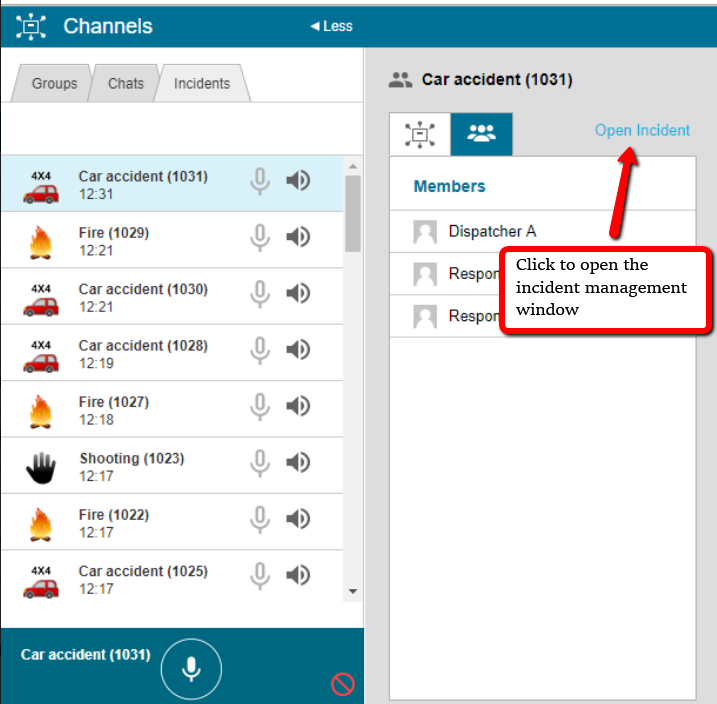
- Click Open Incident to open the Incident Management window directly from the channel.
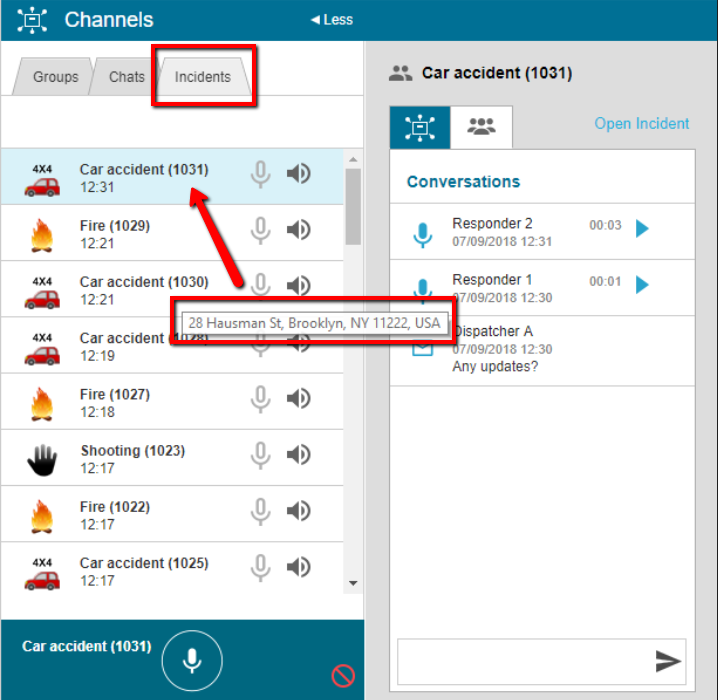
Hover your mouse on one of the channels, to display a tooltip with the incident address.
To access an incident channel from the Incidents panel
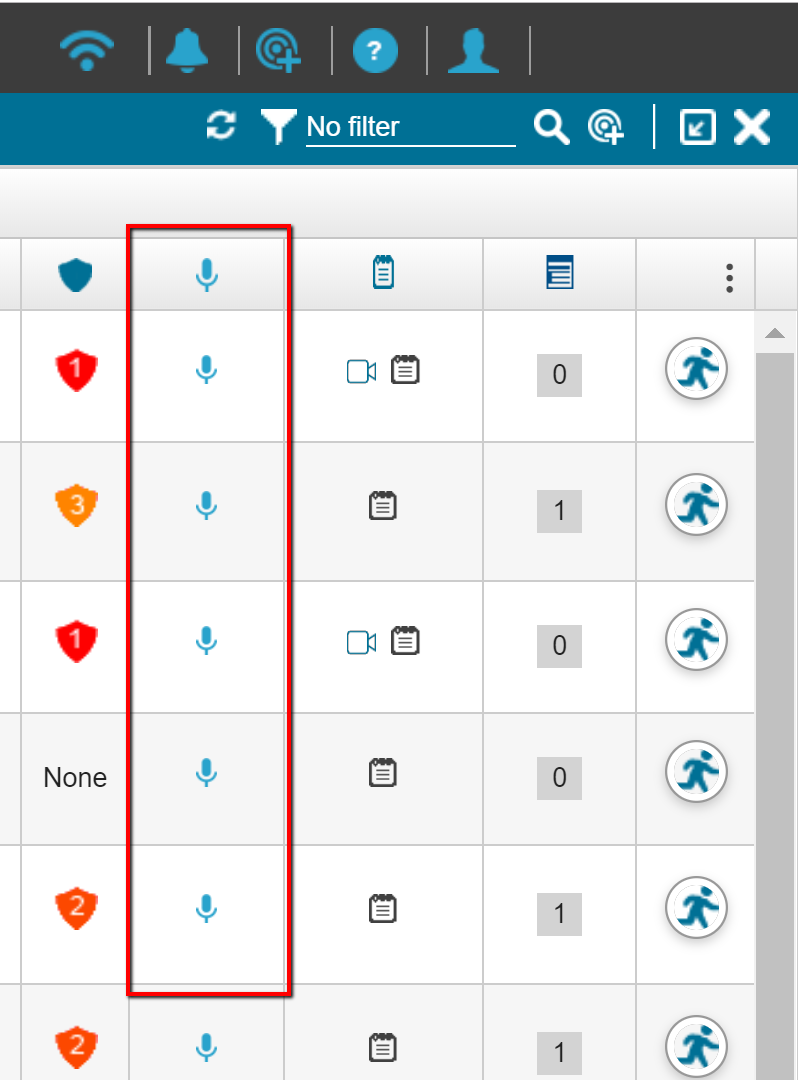
- In the Incidents panel, click the PTT icon in the PTT column of the relevant incident line. The Channels panel (shown above) opens directly on the selected incident channel.
To access an incident channel from the Incident Management window
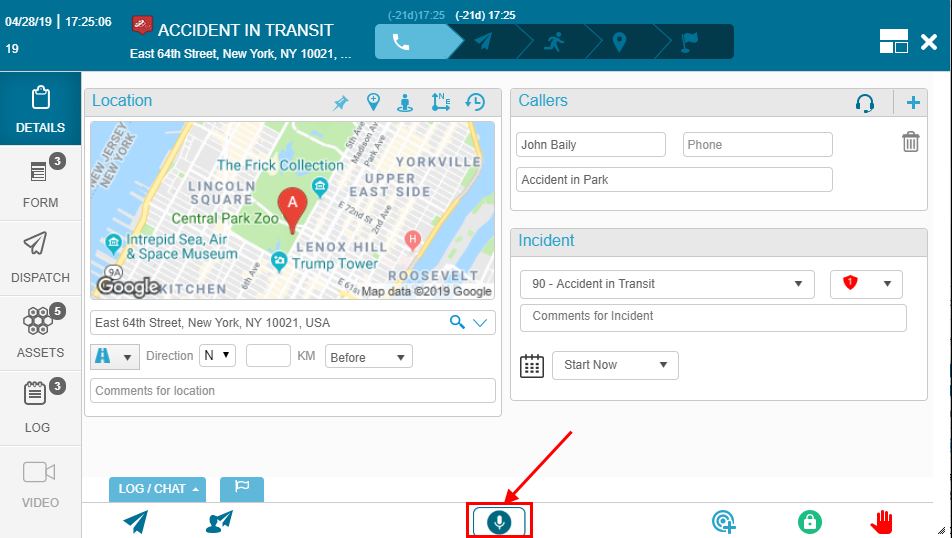
- In the Incident Management window click the PTT icon to open the channels panel directly on the relevant incident channel.
Incident Channel History
When there are no more active responders in the incident (i.e. they have all reported Done or aborted) and the incident is still open, the dispatch operator has access to the channel history, and is able to read or play the messages in the channel. Once the incident is closed, it is removed from the active channels list, and the dispatch operator no longer has access to the channel.