Receiving and Configuring Alerts
Receiving Alerts in NowForce Dispatcher
The NowForce Dispatcher web application is supported by Google Chrome browser.
NowForce Dispatcher only receives audible alerts when NowForce is the open and active Chrome tab.
If the Dispatcher tab in your browser is not your main active working tab, we recommend you follow the steps below to configure your Chrome web browser to ensure that you always receive audible alerts for NowForce Dispatcher.
To ensure that you always receive alerts set your NowForce site to active and create a shortcut to the site.
- In your Chrome browser, click the
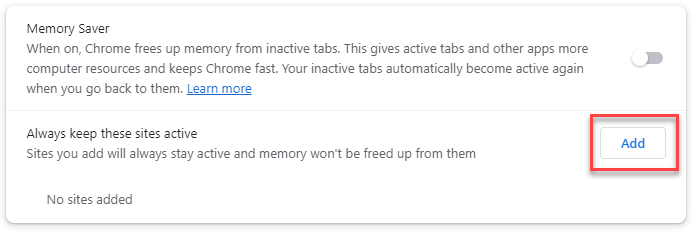
 (Customize and control Google Chrome) from the context menu select Settings> Performance>Memory Saver .
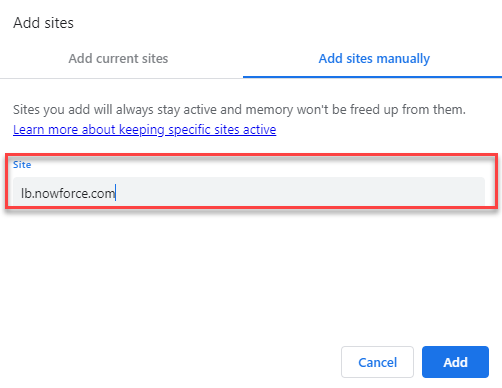
 - Click Add and provide the site name.
-
Click Add.
Your NowForce Dispatcher tab will always be kept active in Chrome.
- In your Chrome browser, click the (Customize and control Google Chrome) from the context menu select More tools> Create Shortcut....
-
On the popup message, select the checkbox Open as a window and click Create.
In addition, set your NowForce Dispatcher site as a pinned shortcut on desktop taskbar. This ensures that your NowForce Dispatcher is saved as a web application and is always available to the operator.
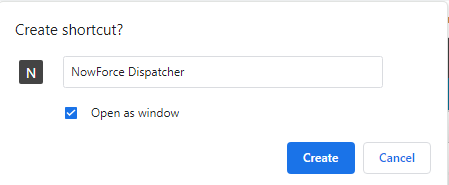
Your NowForce Dispatcher web application shortcut is created and pinned to your taskbar.

Configuring Alerts
Alerts are used raise awareness of a task or activity that requires the users attention in the system. Incidents have many different kinds of alerts and these can be managed from within the Alerts settings.
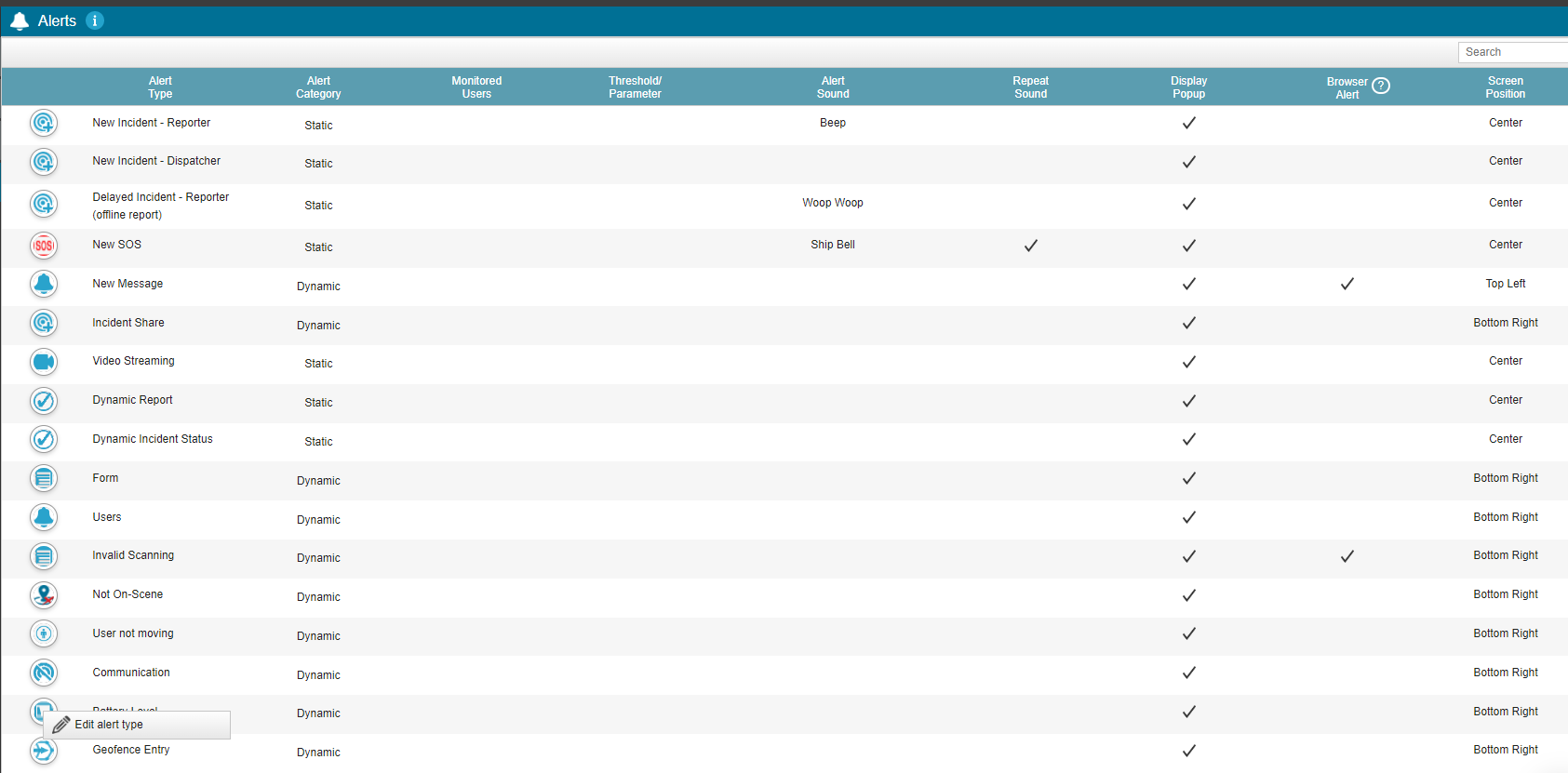
- From the Main screen, select Settings > INCIDENTS, and then select Alerts.
- To edit an Alert types, stand on the Alert type and choose Edit alert type.
-
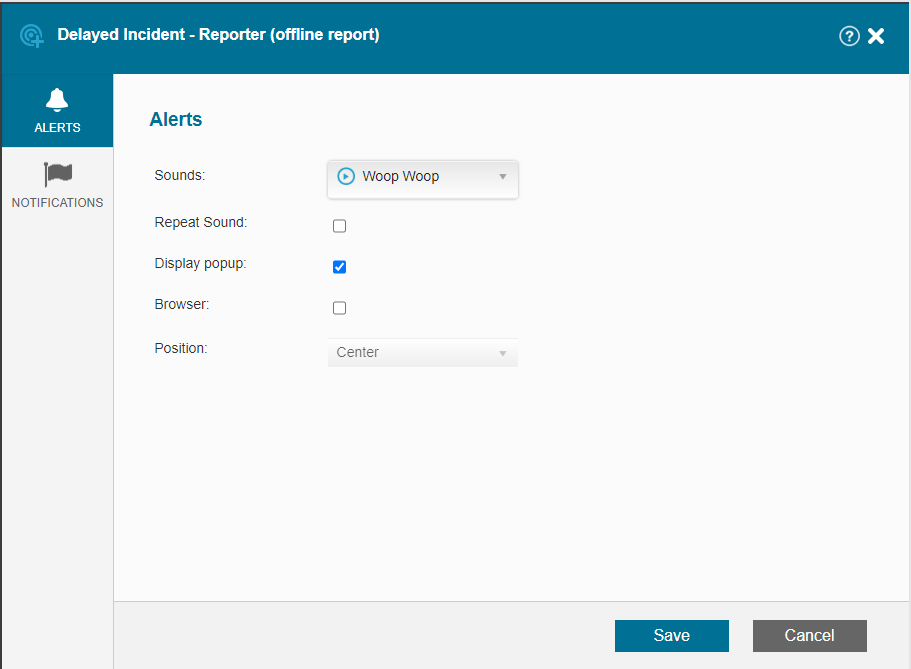
The Alert Type window opens, and you can configure the alert.
- When you are done, click Save,